The next gen ls command
LSD (LSDeluxe)
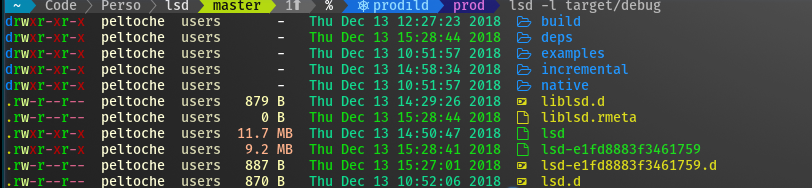
This project is a rewrite of GNU ls with lots of added features like colors, icons, tree-view, more formatting options etc. The project is heavily inspired by the super colorls project.
Installation
Packaging status
Prerequisites
Install the patched fonts of powerline nerd-font and/or font-awesome. Have a look at the Nerd Font README for more installation instructions. Don't forget to setup your terminal in order to use the correct font.
| OS/Distro | Command |
| Archlinux | pacman -S lsd |
| Fedora | dnf install lsd |
| Gentoo | sudo emerge sys-apps/lsd |
| macOS | brew install lsd or sudo port install lsd |
| NixOS | nix-env -iA nixos.lsd |
| FreeBSD | pkg install lsd |
NetBSD or any pkgsrc platform | pkgin install lsd or cd /usr/pkgsrc/sysutils/lsd && make install |
| OpenBSD | pkg_add lsd |
| Windows | scoop install lsd or winget install --id lsd-rs.lsd or choco install lsd |
| Android (via Termux) | pkg install lsd |
| Debian sid and bookworm | apt install lsd |
| Ubuntu 23.04 (Lunar Lobster) | apt install lsd |
| Earlier Ubuntu/Debian versions | snap discontinued, use From Binaries |
| Solus | eopkg it lsd |
| Void Linux | sudo xbps-install lsd |
| openSUSE | sudo zypper install lsd |
From source
With Rust's package manager cargo, you can install lsd via:
cargo install lsd
If you want to install the latest master branch commit:
cargo install --git https://github.com/lsd-rs/lsd.git --branch master
From Binaries
The release page includes precompiled binaries for Linux, macOS and Windows for every release. You can also get the latest binary of master branch from the GitHub action build artifacts (choose the top action and scroll down to the artifacts section).
Configuration
lsd can be configured with a configuration file to set the default options. Check Config file content for details.
Config file location
Non-Windows
On non-Windows systems lsd follows the XDG Base Directory Specification convention for the location of the configuration file. A config.yaml or config.yml file will be searched for in these locations, in order:
$HOME/.config/lsd$XDG_CONFIG_HOME/lsd
On most systems these are mapped to the same location, which is ~/.config/lsd/config.yaml.
Windows
On Windows systems lsd searches for config.yaml or config.yml in the following locations, in order:
%USERPROFILE%\.config\lsd%APPDATA%\lsd
These are usually something like C:\Users\username\AppData\Roaming\lsd\config.yaml and C:\Users\username\.config\lsd\config.yaml respectively.
Custom
You can also provide a configuration file from a non-standard location: lsd --config-file [PATH]
Config file content
This is an example config file with the default values and some additional remarks.
# == Classic ==
# This is a shorthand to override some of the options to be backwards compatible
# with ls. It affects the "color"->"when", "sorting"->"dir-grouping", "date"
# and "icons"->"when" options.
# Possible values: false, true
classic: false
# == Blocks ==
# This specifies the columns and their order when using the long and the tree
# layout.
# Possible values: permission, user, group, context, size, date, name, inode, links, git
blocks:
- permission
- user
- group
- size
- date
- name
# == Color ==
# This has various color options. (Will be expanded in the future.)
color:
# When to colorize the output.
# When "classic" is set, this is set to "never".
# Possible values: never, auto, always
when: auto
# How to colorize the output.
# When "classic" is set, this is set to "no-color".
# Possible values: default, custom
# When "custom" is set, lsd will look in the config directory for colors.yaml.
theme: default
# == Date == # This specifies the date format for the date column. The freeform format # accepts a strftime like string. # When "classic" is set, this is set to "date". # Possible values: date, locale, relative,
Theme
lsd can be configured with theme files to set the colors or icons.
Color Theme
Color theme can be configured in the configuration file(color.theme). The valid theme configurations are:
default: the default color scheme shipped in lsd
custom: use a custom color scheme defined in colors.yaml
(deprecated) theme_file_name(yaml): use the theme file to specify colors (without the yaml extension)
When set to custom, lsd will look for colors.yaml in the XDG Base Directory, e.g. ~/.config/lsd/colors.yaml
When configured with the theme-file-name which is a yaml file, lsd will look up the theme file in the following way:
relative name: check the XDG Base Directory, e.g. ~/.config/lsd/themes/.yaml
absolute name: use the file path and name to find theme file
Check Color Theme file content for details.
Color Theme file content
Theme file use the crossterm to configure the colors, check crossterm for supported colors.
Color table: https://upload.wikimedia.org/wikipedia/commons/1/15/Xterm_256color_chart.svg
Please notice that color values would ignore the case, both lowercase and UPPERCASE is supported.
This is the default theme scheme shipped with lsd.
user: 230
group: 187
permission:
  read: dark_green
  write: dark_yellow
  exec: dark_red
  exec-sticky: 5
  no-access: 245
  octal: 6
  acl: dark_cyan
  context: cyan
date:
  hour-old: 40
  day-old: 42
  older: 36
size:
  none: 245
  small: 229
  medium: 216
  large: 172
inode:
  valid: 13
  invalid: 245
links:
  valid: 13
  invalid: 245
tree-edge: 245
git-status:
  default: 245
  unmodified: 245
  ignored: 245
  new-in-index: dark_green
  new-in-workdir: dark_green
  typechange: dark_yellow
  deleted: dark_red
  renamed: dark_green
  modified: dark_yellow
  conflicted: dark_red
When creating a theme for lsd, you can specify any part of the default theme, and then change its colors, the items missed would fall back to use the default colors.
Icon Theme
Icon theme can be configured in a fixed location, $XDG_CONFIG_DIR/lsd/icons.yaml, for example, ~/.config/lsd/icons.yaml on macOS, please check Config file location to make sure where is $XDG_CONFIG_DIR.
As the file name indicated, the icon theme file is a yaml file.
Check Icon Theme file content for details.
Icon Theme file content
lsd support 3 kinds of icon overrides, by name, by filetype and by extension. The final set of icons used will be a combination of what is shipped with in lsd with overrides from config applied on top of it. You can find the default set of icons here.
Both nerd font glyphs and Unicode emojis can be used for icons. You can find an example of icons customization below.
name:
.trash:
.cargo:
.emacs.d:
a.out:
extension:
go:
hs:
rs: 🦀
filetype:
dir: 📂
file: 📄
pipe: 📩
socket:
executable:
symlink-dir:
symlink-file:
device-char:
device-block:
special: External Configurations
Required
Enable nerd fonts for your terminal, URxvt for example in .Xresources:
URxvt*font: xft:Hack Nerd Font:style=Regular:size=11Optional
In order to use lsd when entering the ls command, you need to add this to your shell configuration file (~/.bashrc, ~/.zshrc, etc.):
alias ls=