Moving to TrueNAS and Democratic CSI for Kubernetes Persistent Storage
I read an article about TrueNAS enabling container storage for Kubernetes by using the Democratic CSI driver to provide direct access to the storage system, and jumped right in.
Up until now I was using my own DIY NAS server to provide various services to the homelab environment, including NFS, which worked great to be honest with you, but it did not have a CSI.
Pre-requisites
We are using our Kubernetes homelab to deploy democratic-csi.
You will need a TrueNAS Core server. Note that installation of TrueNAS is beyond the scope of this article.
The Plan
In this article, we are going to do the following:
Configure TrueNAS Core 12.0-U3 to provide NFS services.
Configure democratic-csi for Kubernetes using Helm.
Create Kubernetes persistent volumes.
The IP address of the TrueNAS server is 10.11.1.5.
Our Kubernetes nodes are pre-configured to use NFS, therefore no change is required. If you’re deploying a new set of CentOS servers, make sure to install the package nfs-utils.
Configure TrueNAS Core
A shout-out to Jonathan Gazeley and his blog post that helped me to get TrueNAS configured in no time.
Create a Storage Pool
We’ve created a storage pool called homelab-hdd/k8s/nfs.
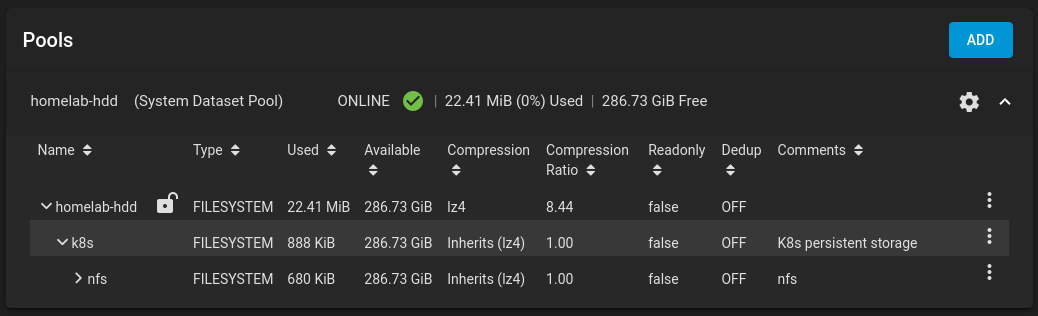
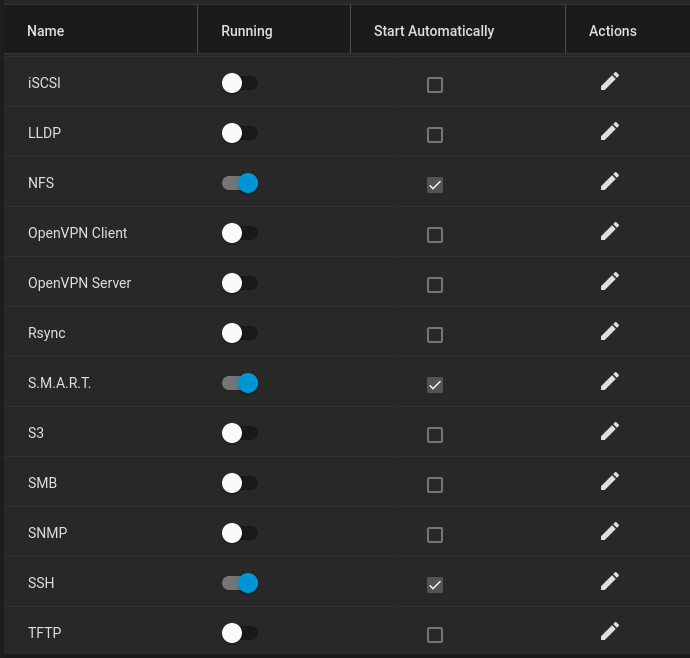
Enable NFS and SSH Services
We are interested in NFS and SSH, no other service is required. Note that S.M.A.R.T should be enabled by default.
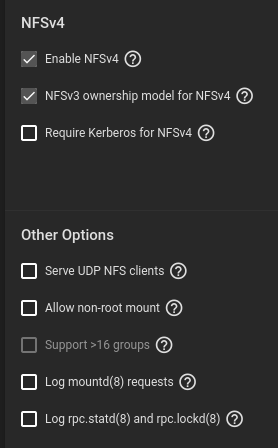
Configure NFS Service
Make sure to enable the following:
Enable NFSv4.
NFSv3 ownership model for NFSv4.
Configure SSH Passwordless Authentication
Kubernetes will require access to the TrueNAS API with a privileged user. For the homelab server, we will use the root user with passwordless authentication.
Generate an SSH keypair:
$ ssh-keygen -t rsa -C root@truenas.hl.test -f truenas_rsa
$ cat ./truenas_rsa.pub
ssh-rsa AAAAB3NzaC1yc2EAAAADAQABAAABAQC5uztUHLU+dYDtj+23MQEpRt/ov4JZG+pw9bKRCbkBKC8aDhxYtJrNyoViGSR4diXORDDH8KA3JCbKVfHKDQhrXy+13aUGOVA/k/oCP/IgQH9spU1QHPCJOCMhIAVzp2lePLzC2ZKcFusFk0mpkCbGTbklt+uLs96+IsrOyhifBgOdmAt7o2FK8H6hl/Wddgk5ARSjPrc10aPxgGo/Gwg4RjGpopOtuRQeHNCC7/RAXzRxJLS7l7BYr/4yI+Gi4kas8sFWx2D0df0c3d/+SM2mccdNRCySywXlgD9tFhf6uCFpfdsnarzMxmH3P0LnxMDWwhisoohIHR3ErzkY4RgX root@truenas.hl.test
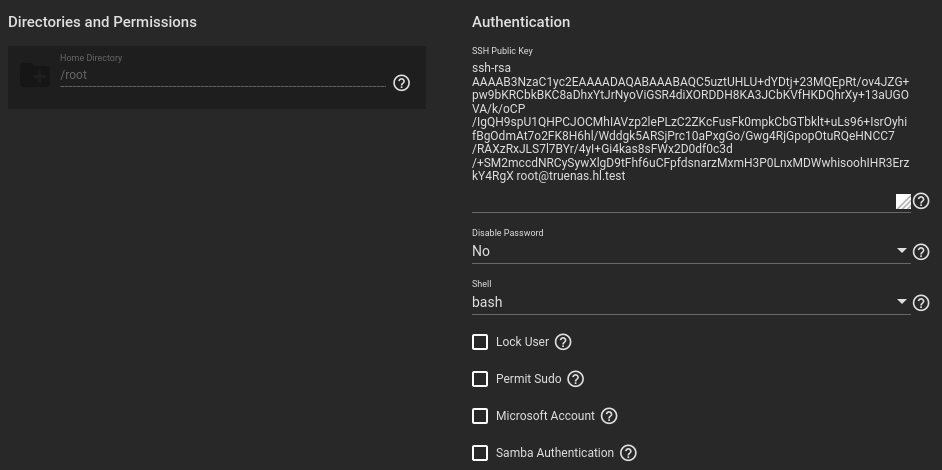
Navigate to Accounts > Users > root and add the public SSH key. Also change the shell to bash.
Verify that you can SSH into the TrueNAS server using the SSH key and the root account:
$ ssh -i ./truenas_rsa root@10.11.1.5
Last login: Fri Apr 23 19:47:07 2021
FreeBSD 12.2-RELEASE-p6 f2858df162b(HEAD) TRUENAS

    TrueNAS (c) 2009-2021, iXsystems, Inc.
    All rights reserved.
    TrueNAS code is released under the modified BSD license with some
    files copyrighted by (c) iXsystems, Inc.

    For more information, documentation, help or support, go here:
    http://truenas.com
Welcome to TrueNAS
truenas#
Generate a TrueNAS API Key
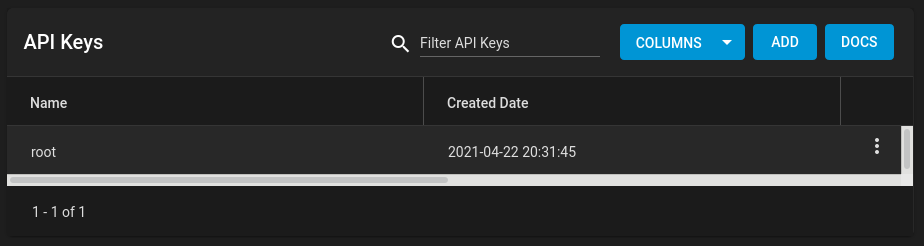
Navigate to settings (cog icon) > API Keys and generate a key. Give it some name, e.g. root. The key will be used to authenitcate with the TrueNAS HTTP server.
Configure Kubernetes democratic-csi
Helm Installation
$ helm repo add democratic-csi https://democratic-csi.github.io/charts/
$ helm repo update
$ helm search repo democratic-csi/
Configure Helm Values File
The content of our file freenas-nfs.yaml can be seen below. Example configuration can be found in democratic-csi’s GitHub repository.
csiDriver:
  name: "org.democratic-csi.nfs"

storageClasses:
- name: freenas-nfs-csi
  defaultClass: false
  reclaimPolicy: Retain
  volumeBindingMode: Immediate
  allowVolumeExpansion: true
  parameters:
    fsType: nfs

  mountOptions:
  - noatime
  - nfsvers=4
  secrets:
    provisioner-secret:
    controller-publish-secret:
    node-stage-secret:
    node-publish-secret:
    controller-expand-secret:

driver:
  config:
    driver: freenas-nfs
    instance_id:
    httpConnection:
      protocol: http
      host: 10.11.1.5
      port: 80
      # This is the API key that we generated previously
      apiKey: 1-fAP3JzEaXXLGyKam8ZnotarealkeyIKJ6nnKUX5ARd5v0pw0cADEkqnH1S079v
      username: root
      allowInsecure: true
      apiVersion: 2
    sshConnection:
      host: 10.11.1.5
      port: 22
      username: root
      # This is the SSH key that we generated for passwordless authentication
      privateKey: |
        -----BEGIN RSA PRIVATE KEY-----
        MIIEogIBAAKCAQEAubs7VBy1PnWA7Y/ttzEBKUbf6L+CWRvqcPWykQm5ASgvGg4c
        [...]
        tl4biLpseFQgV3INtM0NNW4+LlTSAnjApDtNzttX/h5HTBLHyoc=
        -----END RSA PRIVATE KEY-----
    zfs:
      # Make sure to use the storage pool that was created previously
      datasetParentName: homelab-hdd/k8s/nfs/vols
      detachedSnapshotsDatasetParentName: homelab-hdd/k8s/nfs/snaps
      datasetEnableQuotas: true
      datasetEnableReservation: false
      datasetPermissionsMode: "0777"
      datasetPermissionsUser: root
      datasetPermissionsGroup: wheel
    nfs:
      shareHost: 10.11.1.5
      shareAlldirs: false
      shareAllowedHosts: []
      shareAllowedNetworks: []
      shareMaprootUser: root
      shareMaprootGroup: wheel
      shareMapallUser: ""
      shareMapallGroup: ""
Install the democratic-csi Helm Chart
$ helm upgrade \
  --install \
  --create-namespace \
  --values freenas-nfs.yaml \
  --namespace democratic-csi \
  zfs-nfs democratic-csi/democratic-csi
Verify that pods are up and running:
$ kubectl -n democratic-csi get pods
NAME                                                 READY   STATUS    RESTARTS   AGE
zfs-nfs-democratic-csi-controller-5dbfcb7896-89tqv   4/4     Running   0          39h
zfs-nfs-democratic-csi-node-6nz29                    3/3     Running   0          39h
zfs-nfs-democratic-csi-node-bdt47                    3/3     Running   0          39h
zfs-nfs-democratic-csi-node-c7p6h                    3/3     Running   0          39h
$ kubectl get sc
NAME              PROVISIONER              RECLAIMPOLICY   VOLUMEBINDINGMODE   ALLOWVOLUMEEXPANSION   AGE
freenas-nfs-csi   org.democratic-csi.nfs   Retain          Immediate           true                   39h
Create Persistent Volumens
We are going to create a persistent volume for Grafana. See the content of the file grafana-pvc.yml below.
---
apiVersion: v1
kind: PersistentVolumeClaim
metadata:
  name: nfs-pvc-grafana
  namespace: monitoring
  labels:
    app: grafana
  annotations:
    volume.beta.kubernetes.io/storage-class: "freenas-nfs-csi"
spec:
  storageClassName: freenas-nfs-csi
  accessModes:
    - ReadWriteOnce
  resources:
    requests:
      storage: 500Mi
Create a persistent volume claim:
$ kubectl apply -f ./grafana-pvc.yml
Verify:
$ kubectl -n monitoring get pvc -l app=grafana
NAME                   STATUS   VOLUME                                     CAPACITY   ACCESS MODES   STORAGECLASS      AGE
nfs-pvc-grafana        Bound    pvc-371089f8-3c6e-49c6-b6d7-bf2b8ec16108   500Mi      RWO            freenas-nfs-csi   18h
